Selling your iPhone or handing it down? You need to wipe it completely. Not just delete a few apps (that’s pointless), but nuke everything so the next person doesn’t get your photos, passwords, and embarrassing browser history.
This is permanent. Once you erase an iPhone, that data is gone forever. Back up anything you want to keep before you start.
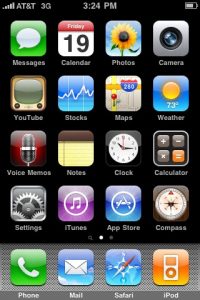
(If you just want to delete individual apps, hold down any app icon until they all wiggle, then tap the X on the ones you don’t want. But that’s not what we’re doing here.)
1. Back Up First (or Don’t Complain Later)
Open iTunes on your computer. Plug your iPhone in with the USB cable. Wait for iTunes to recognize it, then right-click the device in iTunes and select "Back Up."
This saves your settings, app data, and preferences so you don’t have to rebuild everything from scratch if you’re getting a new iPhone. If you’re selling this one and never want to see it again, skip this step.
2. Nuke Everything
Open Settings, then go to General. Scroll all the way to the bottom and tap Reset.
You’ll see a bunch of options. The one you want is "Erase All Content and Settings." Tap it.
Enter your passcode if it asks. Then confirm that yes, you really want to erase everything. The phone will take a few minutes to wipe itself clean. Don’t interrupt it.
Make sure you’ve got the latest iTunes version before backing up, or you might lose data anyway.