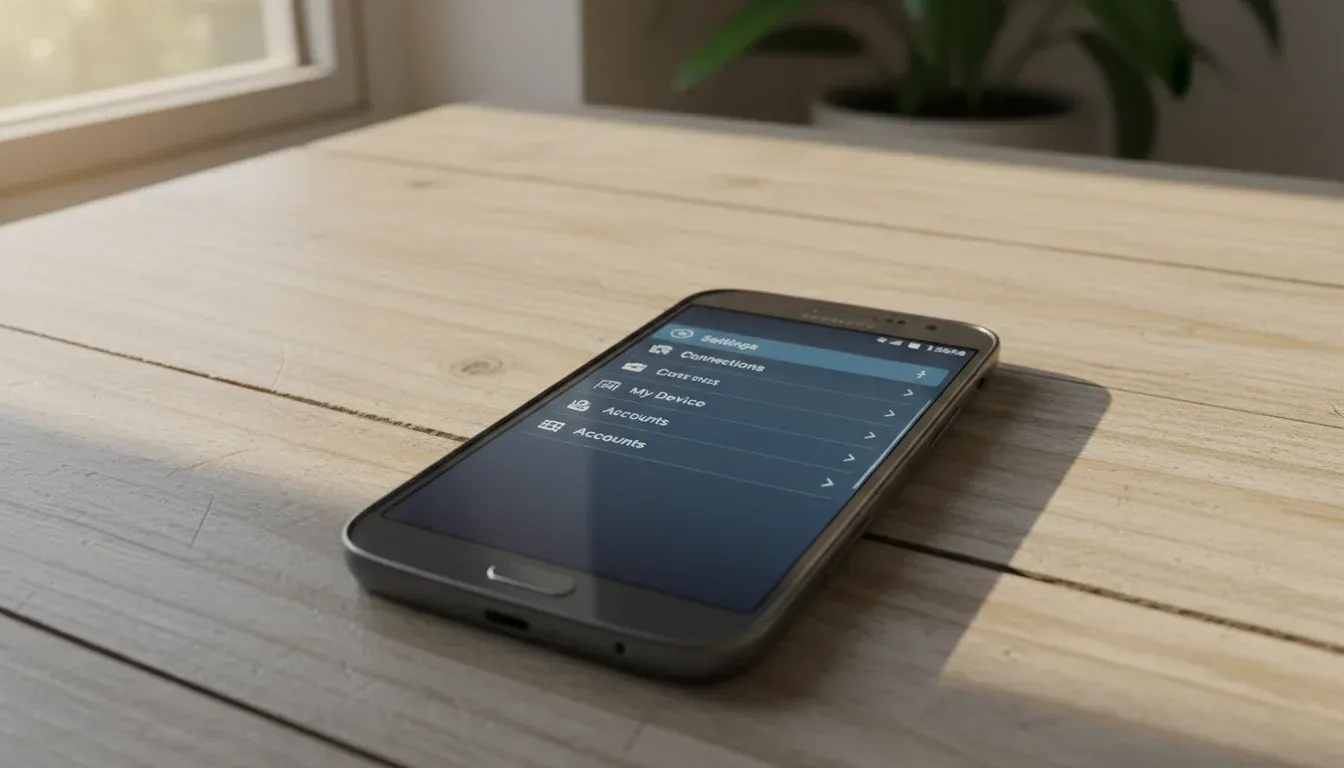
Wiping a Samsung Galaxy Note II completely erases your data. Which is the point, but also means you need to back things up first unless you’re trying to forget your ex’s number.
1. Back Up First (Unless You’re Vengeful)
Once you factory reset this thing, your contacts, photos, videos, apps, and that three-year-old grocery list are gone forever. No recovery option.
Connect your Note II to your computer with the USB cable. When your computer recognizes it, open My Computer (or whatever Windows is calling it this week), find the device, and double-click. You’ll see all the folders stored on your phone.
Create a new folder on your desktop and drag over anything you want to keep. Photos go in DCIM, downloads are usually obvious, and personal files might be scattered across a few folders.
For contacts, open the contacts app on your phone, hit the menu button, and tap "Merge with Google." Then go back to menu and tap "accounts." This pushes all your contacts to your Google account (you’ll need one, but they’re free). Way easier than manually copying 200 numbers.

2. Factory Reset It
Open the Applications menu (bottom of the home screen, last icon on the right). Tap Settings (the cog icon). Scroll all the way down and tap "Back up and reset."
Tap "Factory data reset" under the Personal Data section.
Here’s where you need to pay attention. There’s a checkbox labeled "Format USB storage." If it’s checked, the reset will also wipe any music, photos, or videos stored on your SD card or internal storage. If you already backed those up, fine. If not, uncheck that box before you continue.
Tap "Reset device." The phone will ask you to confirm one more time. Tap "Erase everything" and let it work.
The whole process takes 5-10 minutes. Don’t interrupt it or try to use the phone while it’s resetting. When it finishes, you’ll have a factory-fresh Note II with zero trace of your data.
One more thing. That same menu has an option to automatically back up app data and passwords to Google. Convenient, sure, but it also means Google has all that info. Your call.