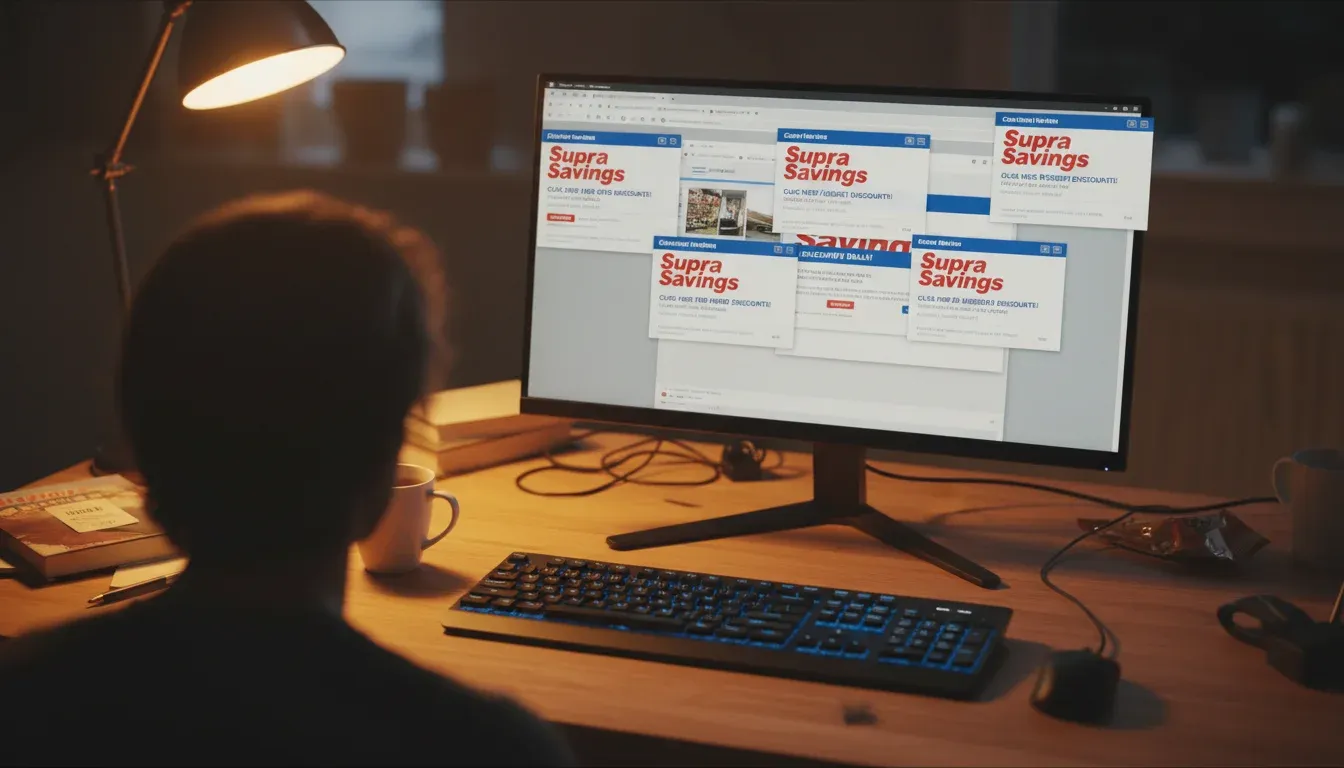
Supra Savings is adware masquerading as a helpful browser extension. It looks legitimate enough to trick you into clicking, then floods your browser with pop-up ads. Once you click one of those ads, it downloads more junk to your PC without asking.
Getting rid of it takes two steps: remove the program itself, then clean out the browser extensions it left behind.
1. Get Rid of the Program
Start here. Open Control Panel (Windows 7 and up: move your mouse to the far right edge of the screen, click Settings, then Control Panel). Under Programs, click Uninstall Program. Scan the list for anything with "Supra" or "Savings" in the name. Highlight it and click Uninstall in the top menu bar.
2. Get Rid of Add-ons

Removing the program doesn’t kill the browser extensions. You’ll need to hunt those down separately.
Internet Explorer: Click the cog icon (top right), then Manage Add-ons. In the left panel, click Toolbars and Extensions. Find anything that says "Supra Savings" in the right panel, highlight it, and click Disable.
Firefox: Click the orange Firefox button (top left), then Add-ons. Go to the Extensions tab, find Supra Savings, and click Remove.
Chrome: Click the three-line menu icon (top right), hover over Tools, and click Extensions. Find Supra Savings and click the trash can icon.
If you’d rather automate this, Malwarebytes or SpyHunter will detect and remove Supra Savings along with any other adware hiding on your system. That’s actually the smarter move if you’re not sure what else got installed.