Table of Contents
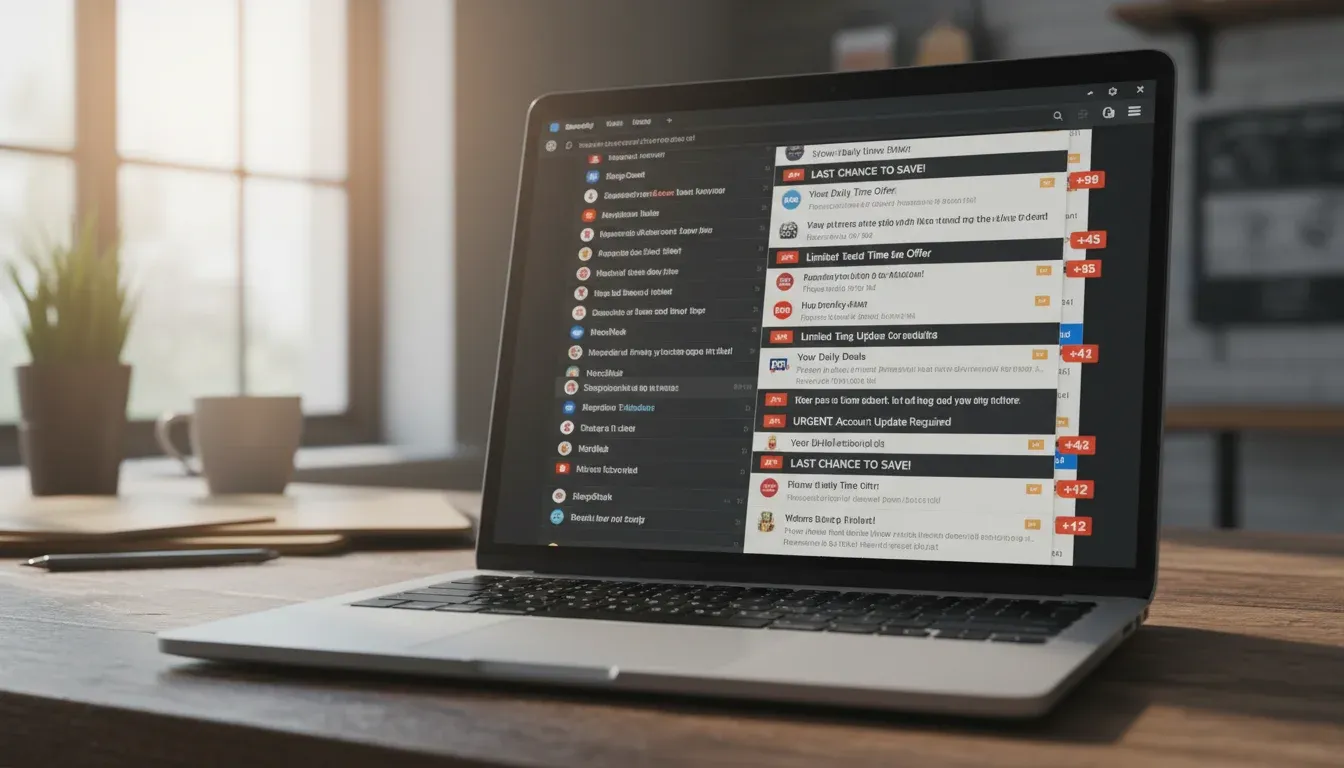
Your inbox is a battleground. For every email you actually want, there are twelve you don’t: promotional offers from that one-time purchase, newsletters you don’t remember signing up for, random updates from apps you used once and forgot about. The unsubscribe button promises freedom, but does it actually work? Sometimes. Not always. And definitely not for the really persistent stuff.
The truth is that "unwanted emails" covers several different problems, each needing its own solution. There’s the legitimate spam from companies that bought your address. There’s the actual malicious phishing attempts. And there’s the gray area of stuff you technically agreed to but now regret. Treating them all the same is why most people’s inboxes stay chaotic.
Here’s how to actually clean up your email and keep it that way.
1. Unsubscribe the Smart Way
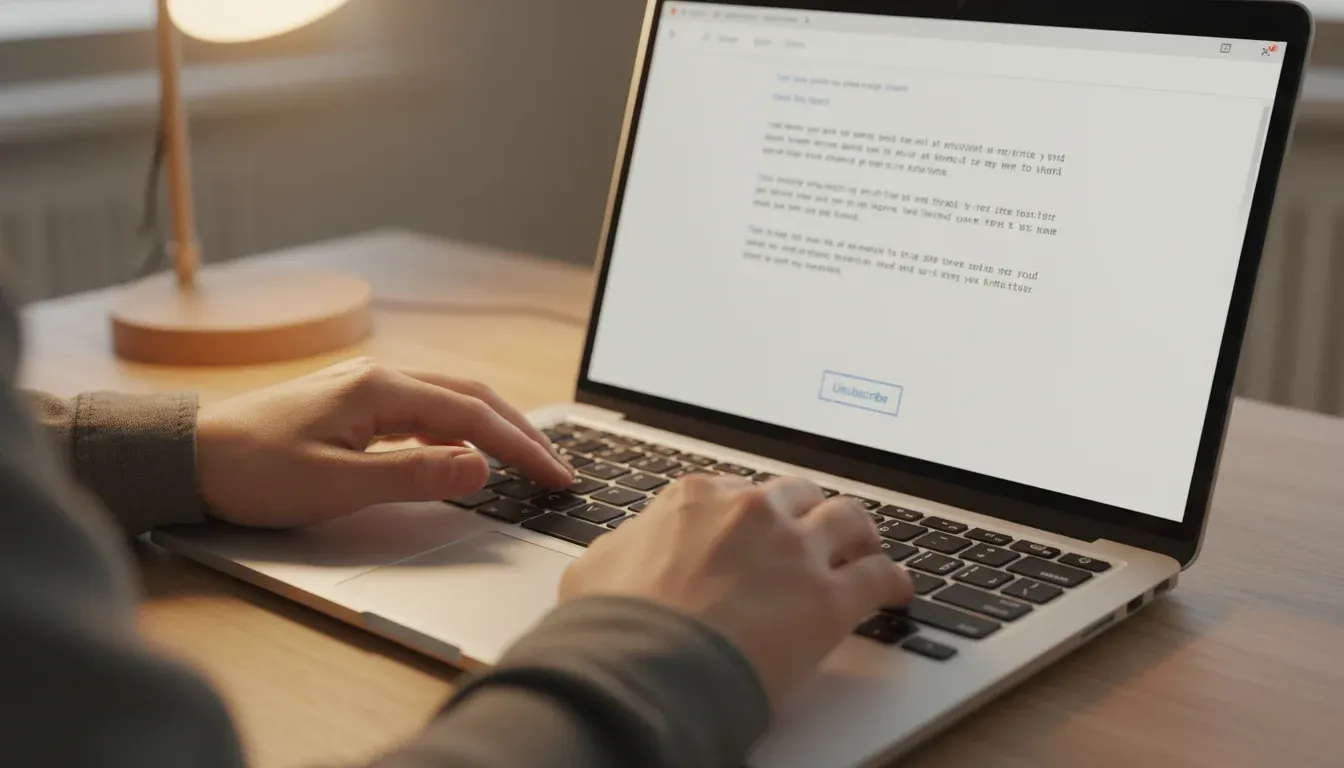
Yes, the unsubscribe link at the bottom of promotional emails actually works most of the time. The problem is that people do it wrong. They click unsubscribe on every single email as it arrives, which is like bailing water with a teaspoon.
Better approach: Once a week, spend ten minutes batch-processing. Search your inbox for common newsletter senders (look for words like "unsubscribe," "preferences," or "manage subscription"). Open five or ten at once in separate tabs, click through the unsubscribe process for each, then close them all. You’ll knock out a month’s worth of buildup in one go.
For the paranoid: Legitimate companies have to honor unsubscribe requests by law (CAN-SPAM in the US, GDPR in Europe). The sketchy ones won’t, but you weren’t going to stop those with an unsubscribe button anyway. If an unsubscribe link looks suspicious or takes you to a weird URL, skip it and mark the email as spam instead.
2. Use a Forwarding Service for Signups
Every time you hand out your real email address, you’re trusting that company not to leak it, sell it, or get breached. Statistically, at least some of them will fail this trust. Stop giving away your main address.
Services like AnonAddy, SimpleLogin, or Firefox Relay create disposable forwarding addresses that route to your real inbox. Sign up for that random website using [email protected] instead of your actual email. When the spam starts arriving, you delete the forwarding address and the problem disappears without affecting your main inbox.
The free tiers give you enough addresses for normal use. Power users can pay a few dollars a month for unlimited aliases. Either way, it’s cheaper than the time you’ll spend filtering spam for the rest of your life.
3. Report as Spam and Let Algorithms Learn
Your email provider’s spam filter is only as good as the data you feed it. Every time you delete a spam email without marking it, you’re missing a teaching opportunity.
The "Report Spam" button (or "Junk" in Outlook) does two things immediately: it moves the email out of your inbox and it tells the filter that similar messages should be blocked in the future. Be aggressive about this. False positives are rare and easily fixed. Under-trained filters are a daily annoyance.
For the really persistent senders that keep bypassing your filter, use "Report Phishing" instead if it’s available. This sends stronger signals to email providers and can get malicious senders blocked at the infrastructure level, protecting other users too.
4. Create a Burner Address for High-Risk Situations
Some situations are basically guaranteed to generate spam: entering contests, downloading free ebooks, registering for webinars, anything that asks for your email in exchange for something "free." These are lead generation machines, and your email is the product being sold.
Create a secondary email address specifically for these situations. Gmail makes this easy and free. Give out the burner address, check it once a week if you need to confirm a download, otherwise let it accumulate garbage. Your main inbox stays clean, and when the burner becomes unusable from spam overload, you abandon it and create a new one.
The mental load of managing two addresses is lower than you think. Use your main email for actual humans and important accounts. Use the burner for everything else.
5. Review App Permissions and Notification Settings
That app you downloaded three years ago and opened twice? It’s still emailing you. So are the three dozen other apps, services, and websites that have your address buried in their user databases.
Go through your inbox and look at who’s actually sending you mail. For each sender, ask: Do I still use this service? Do I need these updates? Most apps have notification settings where you can dial back from "all emails" to "only important" or turn them off completely.
For apps you don’t use anymore, delete your account entirely if possible. Most companies are required to delete your data upon request, including your email address from their marketing lists. It’s more effective than unsubscribing because it removes you from future lists they might acquire or merge with.
6. Filter and Auto-Sort the Acceptable Stuff
Not all unwanted email is spam. Some of it’s stuff you technically want but don’t need cluttering your main inbox: receipts, shipping notifications, social media digests, monthly newsletters you actually read.
Email filters are your friend here. Create rules that automatically sort these into folders based on sender or subject line. The email still arrives, but it bypasses your inbox and waits in its designated folder until you want to look at it.
Set up filters for the senders that email you most frequently. Shipping notifications from Amazon go to a "Shopping" folder. Receipts from every service go to "Receipts." Social media digests go to "Social." Your inbox becomes only the stuff that needs immediate attention. Everything else is one click away when you want it.
7. Use Email Provider Tools Aggressively
Gmail’s "Promotions" and "Social" tabs work better than most people realize. Outlook’s "Focused Inbox" learns from your behavior. Apple’s Mail has junk filters that improve over time. These tools exist because email providers know the spam problem is out of control.
Actually use them. Don’t just turn them on and hope. Train them by moving misfiled emails to the correct categories. Mark important stuff that lands in Promotions as "Not Promotions." Drag social notifications to the Social tab. The algorithms learn fast, and after a week of training, your email mostly sorts itself.
The nuclear option: Some providers let you auto-delete emails from specific senders or containing specific words after a certain age. Set up rules to auto-purge promotional emails older than 30 days. If you haven’t read it by then, you weren’t going to.
When to Start Over Completely
Sometimes an email address is too far gone. If you’re getting hundreds of spam emails daily, if your address has been in major data breaches, or if you signed up for too many sketchy services over the years, cleaning up might take more effort than starting fresh.
Create a new primary address, migrate your actual important contacts and accounts, and abandon the old one to the spam wolves. It’s a weekend project, but it’s sometimes the only way to reclaim a usable inbox. Just promise yourself you’ll protect the new address better than the last one.